

Start using AI for real work in your first hour — a 2026 beginner's guide
You don't need to be technical to put AI to work. This walks you from “first chat” to “let AI touch real files and the web” in a single hour.
1. Pick the right AI
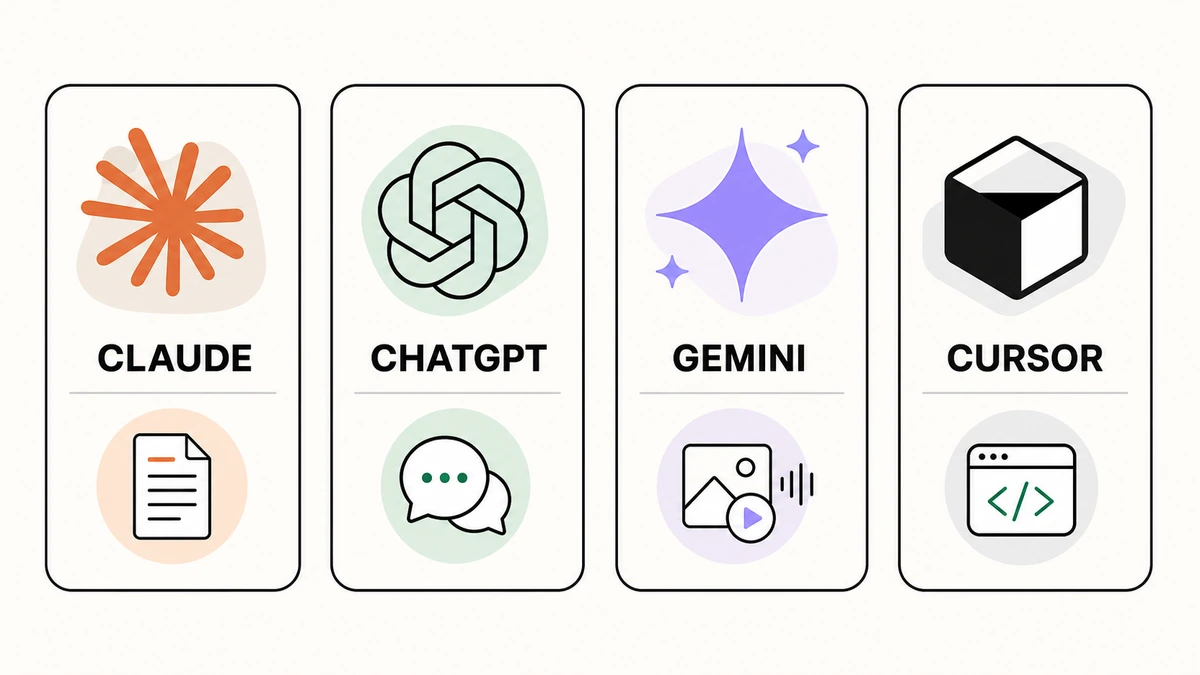
- Writing/thinking/summarising → Claude or ChatGPT
- Coding → Claude Code, Cursor
- Cited research → Perplexity, Gemini
See what each tool supports at Supported AI.
2. Get good results (prompt basics)
- State a role — “You are a Thai copy editor…”
- Give context + examples — more input, sharper output
- Specify the format — “answer in 5 bullets”
Don't want to write your own? Grab one from the Prompt catalog.
3. Give the AI skills
For work you repeat (code review, slides, writing), install a Skill once and the AI stays good at it — no re-explaining.
Browse the 278-skill catalog · new to Skills? Read Skills vs Prompts.
4. Let it touch real tools (MCP)
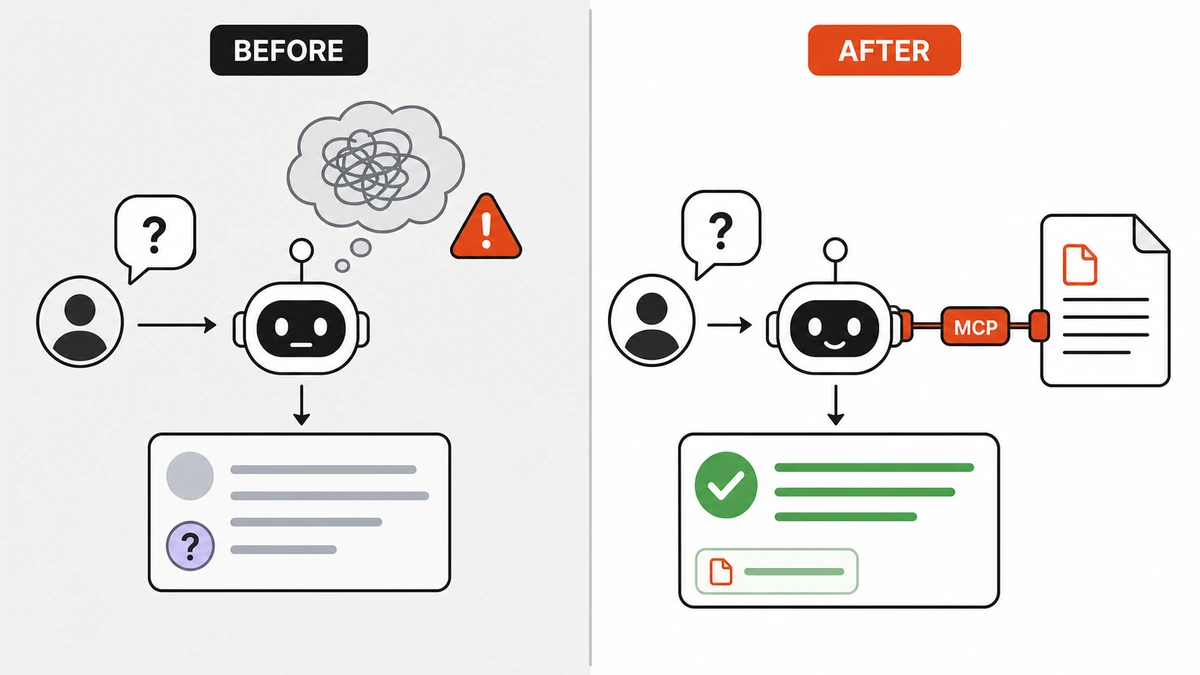
Once comfortable, let the AI work with real things — local files, GitHub, the web — via MCP. Start with Filesystem + GitHub.
Setup in 10 MCPs worth trying.
5. Shortcut: use a Loadout
Don't want to assemble it piece by piece? A Loadout bundles Prompt + Skill + MCP + how-to for one job — download the .loadout.md and open it in your AI.
See the Loadout catalog.
Things to watch
- Never put secrets/passwords in the chat or let the AI store them
- Always check results before real use — AI still slips
- Grant MCP least privilege; prefer official sources